ILEC SN10 Sources
The ILEC SN10 is suported by
ILEC Gmbh,
in Bayreuth, Germany.
This Nadler & Associates web page is the primary
source for the current SN10 manual and software.
In North America, ILEC products are sold and supported by:
Cumulus Soaring
In Australia and New Zealand:
ILEC Australia
Current ILEC SN10/SN10B Software and Documentation
Version 2.49 (as Dave flew in 2025 USA Cordele 18m nationals and Hobbs open nationals) includes:
Time sync to GPS, PEV support (timer plus FLARM PEV),
Dave's Vario support (SensorBox communications),
LAN performance improvements, and
minor bugfixes.
Links to the most recent ILEC SN10/SN10B software and documentation:
- Current Release Notes
-
Windows Installer version 2.49
SN10 and SN10B software and utilities Windows Installer, for Win95 and later, including 64-bit Windows (not for DOS or Win 3.1).
Installs all HEX files, PC-link, Serial Software Loader, IGC file tool tip utility installer, and documentation links on your Windows PC.
-
ILEC SN10B Demonstration version 2.49.
SN10B demonstration program installer (for Windows XP SP2 and later, including 64-bit Windows through Windows 11).
Use this demo to refresh your memory on how to operate your SN10.
Also, great for checking your custom NDB database file is correctly constructed with your airspace as expected. - ZIP of all SN10 and SN10B software and utilities. Download this if you just want the firmware HEX files. Copy the required HEX file from this ZIP to a USB stick for update using the SN10-USB adapter. Also for installation using a non-Windows OS such as DOSbox. Includes 64-bit Linux versions of airspace parsers.
- SN-10 manual (English pdf)
- SN-10 Handbuch (Deutsch pdf)
- See the links below for the SN10-USB-Adapter
documentation and software updates
ILEC SN10 Service
In the unlikely event your ILEC instrument needs to be returned to
ILEC for service, please carefully follow these
shipping instructions to avoid delays in service:
Checklist
for ILEC Instrument Shipping.pdf
Using TopHat with your ILEC SN10
Many ILEC SN10 pilots like to have a large moving map in addition to the SN10.
The TopHat open-source project
provides a great moving map,
and SN10 software 2.41 onwards provides the following features:
- The task you enter on the SN10 is displayed on TopHat, including AAT areas and target point within a turn area. As you update the task and/or round turnpoints the task on TopHat is updated.
- TopHat uses the SN10 current wind and other info.
- You'll have a nice large map with alternates always visible while you use other SN10 pages (you will have to load a database into TopHat).
Here are a few snapshots of TopHat running on a Kobo Glo in the ArcusM (click on thumbnail for larger image):


Quick movie showing TopHat receiving updated task from SN10.
Connecting TopHat to your ILEC SN10
Typical SN10 installations use PowerFLARM to provide both GPS and FLARM input to the SN10. The SN10 serial output echoes FLARM messages and adds information about the current task, wind, etc. The SN10 serial output is connected to both the FLARM serial input and the TopHat serial input (note the FLARM serial output is connected only to the SN10 input). A USB-serial converter converts the SN10 NMEA RS-232 output to USB for the Kobo, and a 12v-to-5v supply powers the Kobo (and USB converter).
Details about how to set this up:
Diagram for SN10-to-Kobo connection.
USB Power Supply from Aircraft Spruce (no RF noise like cheapo parts on Amazon)
Complete Amazon shopping list for EVERYTHING you'll need (but skip cheapo USB power supply).
See the TopHat website for details on TopHat Kobo setup,
but note the SN10 output replaces the GPS puck shown in the TopHat illustrations.
Warning: Do not directly connect a USB-serial-adapter to any SN10 port or cable
except via SN10-PC cable.
Follow the wiring diagram above for Kobo/PDA hookup!
Warning: Do not connect any USB device except a USB memory stick to the SN10's USB adapter!
Connecting a FLARM® to your ILEC SN10
Pilots world-wide use FLARM to provide GPS and traffic info to the SN10.
Enable the optional FLARM support features on the "SN10 Options 2" page:
- FLARM collision warning page (pops up graphic for collision warning)
- FLARM neighbors moving map display page
Make sure you set both FLARM and ILEC SN10 GPS baud rates to 19200 !
Your ILEC SN10 will optionally declare your task from the SN10 into the
FLARM (only works for IGC-approved versions of FLARM).
Connecting a PowerFLARM® brick to your ILEC SN10
PowerFLARM brick is supplied with a DB-9 cable to ease connections. This cable is color-coded but please double-check the pin connection of each DB-9 wire before soldering.
| ILEC SN10 Function |
ILEC Panel Cable DB-9M pin number |
ILEC Panel Cable wire color |
FLARM DB-9 Cable wire color |
FLARM DB-9 Pin Number |
PowerFLARM Brick Function |
|---|---|---|---|---|---|
| NMEA-format serial input |
S/N >=100: pin 9 S/N 1-99: pin 3 |
Green | Brown | 2 | serial port #2 NMEA-format output |
| NMEA-format serial output | 2 | Yellow | Red | 3 | serial port #2 NMEA-format input |
| Do NOT connect to SN10 power output! The SN10 cannot provide enough power to run a FLARM or PDA safely! Connect FLARM power input to your battery via a separate fuse! | Blue | 7 | +12v power input | ||
| Do NOT connect to SN10 power output ! | Yellow | 5 | Power ground | ||
Note: The PowerFLARM serial port in the DB-9 connector must be
enabled (by default it sends no output).
Please create a FLARMCFG.TXT file on a USB-memory stick and
configure your brick to enable serial port #2.
Download FLARM manuals and firmware here
Connecting your SN10 to a PDA
The SN10 provides an output stream that echoes input data from your GPS or FLARM,
and adds additional information for use by PDA programs.
A number of pilots have damaged their SN10s by making unfortunate wiring connections...
Please, to avoid damage and expensive repairs, do not do what some pilots have done:
- DO NOT connect the switched 12v output from the SN10 to
a PDA (or anything other than a Volkslogger).
The SN10 switched output cannot provide enough power!
Use a separate power supply for your PDA! - DO NOT connect the 5v output from the SN10 to a PDA!
This SN10 output can only power an SN10 remote!
Use a separate power supply for your PDA! - DO NOT connect anything to the SN10 "A"/"B" ports.
These are not serial connections! - DO NOT connect the PDA output to the SN10. The SN10 has only one available serial port input which must receive data from a GPS or FLARM.
- DO NOT connect the output of your GPS/FLARM to any other output (for example the PDA output).
- DO NOT connect a PDA input that only accepts
3v or 5v to the SN10 output
(the SN10 outputs higher voltage RS-232 levels);
You will damage the SN10 and/or the PDA! - DO NOT connect a "standard serial" cable
to the panel cable or the connectors on the back of an SN10!
Some customers have even destroyed the serial port on their PC doing this.
Only use cables specifically designed to work with the SN10!
Here's a diagram showing how to hook a PDA and GPS/FLARM to the panel cable.

TE Compensation
There are a lot of misconceptions and myths about Total Energy
compensation.
Faster is not better !
Rudy Brozel (designer of the ILEC TE probes used world-wide)
wrote this classic paper explaining TE, and how to test your
installation:
Brozel article on
TE_Compensation
Note: Needs an update to properly explain V^2 problem with gusts.
ILEC SN10 USB adapter
With the ILEC SN10 USB adapter,
a USB "thumb-drive" "memory-stick" can
be used to save flight logs, load new site information into the SN10,
and load new SN10 software versions - no more carrying a laptop
to the glider, searching for the SN10 PC-cable, or fighting with
cranky USB-to-serial adapters. See:
ILEC
SN10 Manual supplement for USB adapter
Updating the USB adapter software
Download the file
ILEC SN10 USB
adapter software ZIP
and unzip it onto a memory stick (you should see ILECUSBA.HEX).
Follow the update instructions in section 10.5
of the USB manual supplement above. The link above points to the most
version of ILECUSBA.HEX. Updates to the USB software are detailed below.
USB adapter software update 19-September-2022
- reduce network load (speeds 2nd seat display, also helps SN10C)
USB adapter software update 11-April-2020
- Better special character support and error checking
- Supports exFAT formatted sticks (except for loading new USB firmware)
- Adds LFN support (but NDB names must be unique first 8-chars)
Older USB adapter software updates
USB adapter software update 25-May-2016
- too long comments in NDB files don't cause errors
- more reliable reporting of USB stick disk label
USB adapter software update 6-August-2010
Some DOS and Windows text editors stick a DOS-specific control character (ctrl-Z) at the end of a file. The USB adapter, as with many of us, was surprised and confused by this ctrl-Z, and the SN10 displayed an error "USB-NDB Error, Line 554, unrecog. record" with the line number pointing to the last line of the file. This update of the USB-adapter software (not the SN10 software) ignores the ctrl-Z
USB adapter software update 18-May-2010
The SN10 got pretty excited when presented with a USB memory stick requiring too much power. To stop getting the warning message "USB stick requested too much power", it was not only necessary to unplug the stick, but to turn the SN10 off and on again and clear one last warning. This software update calms it down, only one warning ! Thanks to JJ for bringing this to our attention and sending me a stick that actually requested more than 100ma. A tenth of an Amp should really be enough power, but there are some el cheapo sticks out there that ask for more... This bug is in the software within the USB adapter (not the SN10 software).
USB adapter software update 3-February-2010
We found a bug that caused some NDB files not to load properly (only some NDBs without airspace information). This bug is in the software within the USB adapter (not the SN10 software).
Talking to your ILEC SN10 from your PC
ILEC SN10 pilots who haven't yet installed an SN10 USB adapter
use a laptop to upload turnpoint and map
data to the SN10, and to download flight logs from the SN10.
Most pilots have no problems, however...
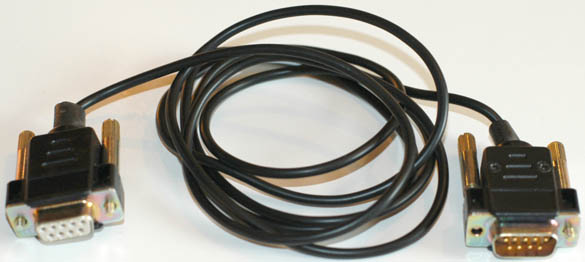
Use the ILEC PC-cable !!
You
must
use the ILEC PC-cable to connect a PC to the SN10.
The wrong cable will
typically short out various SN10 signals and power supplies, cause
the knobs and buttons to stop working, and possibly damage the SN10
and/or the PC.
The ILEC PC-cable looks like the picture at left.
Do not
plug a USB-serial adapter directly into the SN10 or panel cable.
Do not use a "standard" serial cable, or the cable you found underneath the desk in your clubhouse, or you will have problems.
My PC doesn't have a serial port...
We really suggest you get an ILEC USB-adapter to avoid needing a
PC at the glider.
However, if you must use a PC, find an FTDI USB-to-serial adapter
(beware of clones; buy from a reputable source).
Older details on which USB-to-RS232 solutions work,
how to use a Mac instead of a PC,
and what to avoid here:
Talking to your SN10 via a USB Port (old)
For help in using a PocketPC/PDA instead of a PC, Paul Remde has provided
assistance here (Thanks Paul !):
ILEC
SN10
Transfers with PocketDOS
Volkslogger flight declarations with ILEC SN10
Note: In 2020 IGC reduced Volkslogger to "Level 2 security" (no world records), but it is still OK for all badges and distance diplomas. Several people have had badge applications denied because of a missing aircraft registration in a Volkslogger flight log. If you are still(!) using a Volkslogger with an ILEC SN10, please follow the instructions below.
IF YOU DO NOT FOLLOW THIS PROCEDURE THE "AIRCRAFT REGISTRATION" WILL BE BLANK IN YOUR VOLKSLOGGER LOG FILE, AND YOUR BADGE OR RECORD CLAIM MAY BE REJECTED.
To declare a flight for an IGC badge or record, you will need to fill in the "Aircraft Registration". While the ILEC SN10 can declare the task, pilot, and contest ID to a Volkslogger, you must fill in the aircraft registration (N number) using the Volkslogger directly.
(1) Using the 3-buttons on the Volkslogger, enter your aircraft
registration number.
This is under the menu:
FAI > EDIT > INFO > AIRCRAFT-REG
(2) IMMEDIATELY erase the flight recorder memory:
ACT > MEMCLR
Paradoxically, erasing the Volkslogger's memory
is what permanently saves the current FAI info.
If you do not erase the memory after entering
the registration, the next time you declare a task
from the SN10, the aircraft registration field
will be BLANK !
Note: "Declare Task" does NOT save the aircraft registration permanently ! You must ACT > MEMCLR !
Once you've performed this procedure, you will never need to re-enter the aircraft registration in the Volkslogger - it will be permanently saved.
Please lobby your SSA Regional Director and
our IGC representative to use common sense when
homologating badge and record claims.
The aircraft, pilot and competition ID in the flight log,
plus an official observer's signature should be enough !
ILEC SN10 Technical Notes
The following are technical notes to help create software and services that work with the ILEC SN10.
ILEC SN10 PDA Support
The ILEC SN10 optionally produces output to drive an
in-cockpit PDA. This output is used by some
popular PDA software. Here's how it works:
ILEC SN10 PDA Support (documentation needs update for latest task output as used by TopHat)
ILEC SN10 Airspace Support
The ILEC SN10 displays a moving map including airspace
features. Starting with airspace information in Tim
Newport-Peace's format, the information is translated
into the SN10's internal format and appended to the
NDB file.
Using utility software we provide, this is performed
automatically by some popular PC programs and web sites,
including StrePla and John Leibacher's World-Wide
Turnpoint Exchange. Here's how the process works:
SN10 Airspace Support